Ces instructions sont basiques, je vous suggère de faire une recherche Google sur votre appareil afin d'en apprendre le plus possible avant de procéder à l'installation.
Comment charger un appareil Fire TV à l'aide d'une application de téléchargement ?
Dans cet exemple, nous utiliserons le Fire TV Stick Lite, mais ces instructions fonctionneront avec n'importe quelle variante de Fire TV. Pour installer Downloader et activer la fonction "Sources inconnues", procédez comme suit :
- Dans l'écran d'accueil, localisez et sélectionnez l'option "Rechercher".
-
Sélectionnez "Recherche", localisez et sélectionnez "Downloader".
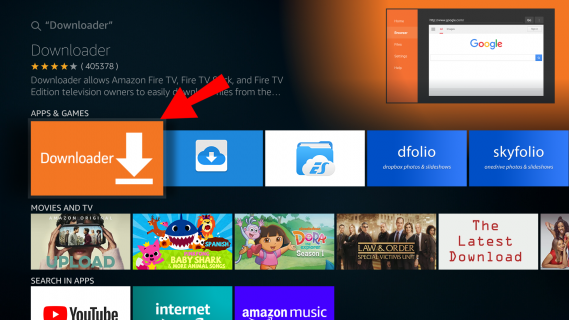
- Sélectionnez l'application "Downloader", puis cliquez sur "Download".
- Une fois l'installation terminée, sélectionnez "Ouvrir".
-
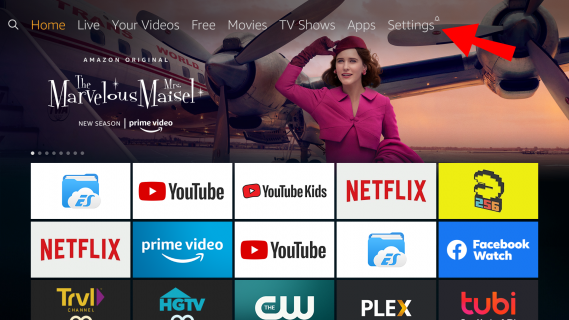
Retournez à la page d'accueil et accédez à "Paramètres".
-
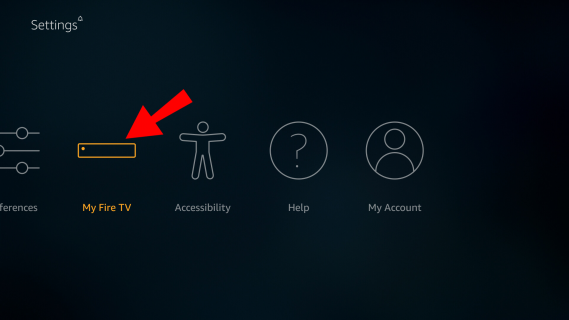
Sélectionnez "My Fire TV".
-
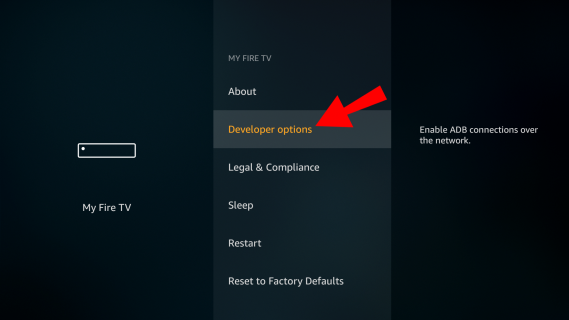
Sélectionnez les options "Développeur".
-
Cliquez sur "Installer des applications inconnues".
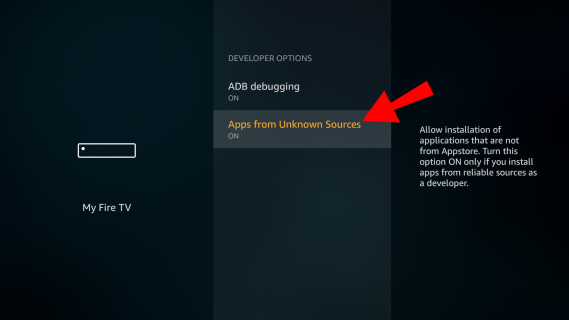
-
IMPORTANT : Si vous ne voyez pas les options de développement, cliquez une fois sur À propos dans la section Ma Fire TV.
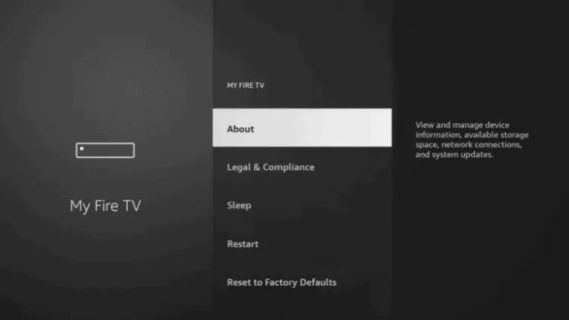
-
Une fois que vous avez cliqué sur À propos, survolez Fire TV Stick et cliquez sept fois sur le bouton OK de votre télécommande pour devenir un développeur.
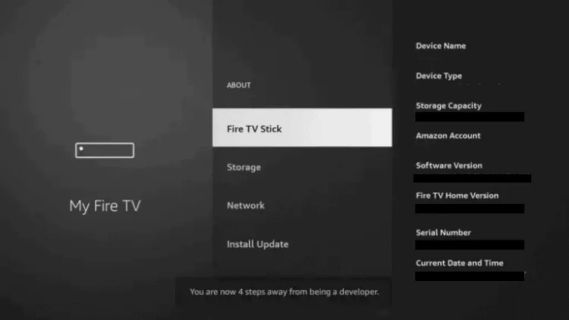
Cela permet d'activer la fonction "Sources inconnues" pour l'application "Downloader" et d'autoriser le chargement latéral sur votre appareil Fire TV.
-
Localisez et sélectionnez l'application "Downloader".
-
Retournez à l'application Downloader et saisissez l'URL de l'application que vous souhaitez installer.
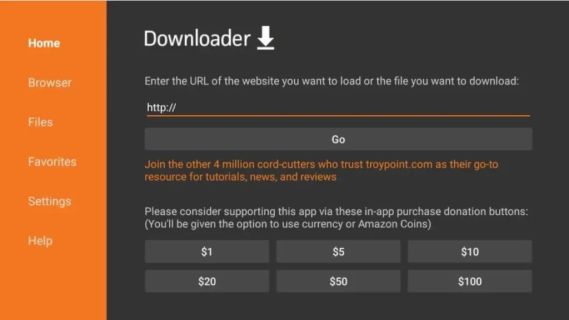
- Par exemple, saisissez l'URL de l'application IPTV Smarters : https://www.iptvsmarters.com/smarters.apk
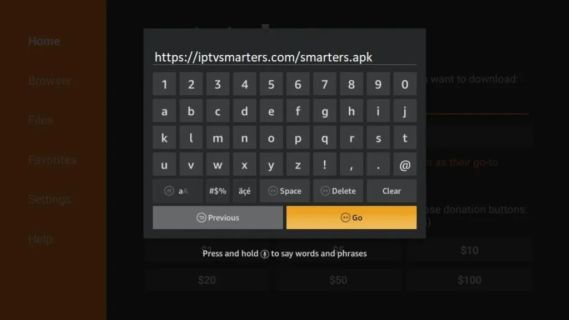
- Sélectionnez "Go" pour télécharger l'application.
- Une fois le téléchargement terminé, sélectionnez "Installer".
- Sélectionnez "Terminé" ou "Ouvrir" pour lancer l'application.
Android
Suivez les étapes suivantes pour configurer IPTV Smarters sur votre appareil Android :
- Téléchargez l'application IPTV Smarters à partir de cette URL : https://www.iptvsmarters.com/smarters.apk
- Ouvrez l'application une fois téléchargée et entrez les données de connexion fournies après l'inscription.
- Cliquez sur `ADD USER` pour continuer.
- Attendez quelques secondes que l'application se charge.
- Cliquez sur l'icône "Live TV".
- Sélectionnez le groupe de chaînes que vous souhaitez regarder.
- Cliquez sur le nom de la chaîne et double-cliquez sur le petit écran pour le transformer en plein écran.
Apple
Suivez ces étapes pour configurer GSE IPTV Player sur votre appareil Apple :
- Téléchargez GSE IPTV Player depuis l'App Store.
- Passez votre commande en indiquant le nom d'utilisateur et le mot de passe souhaités au moment du paiement.
- Une fois que vous avez reçu votre e-mail de confirmation, ouvrez GSE et sélectionnez les 3 lignes en haut à droite.
- Sélectionnez l'api xtreamcodes.
- Sélectionnez le + en bas à droite pour créer un profil.
-
Saisissez les informations suivantes :
- Tout nom : Premium
- Nom d'utilisateur : Votre nom d'utilisateur
- Mot de passe : Votre mot de passe
- URL: Fourni dans l'e-mail de confirmation de votre commande
- Sélectionnez ajouter, puis sélectionnez le nouveau profil et installez epg.
- Tout est prêt. ENJOYEZ-VOUS !
TiviMate
Suivez les étapes suivantes pour configurer TiviMate :
- Télécharger TiviMate depuis https://tivimates.com/tiviapk.
- Ouvrir TiviMate.
- Sélectionnez Ajouter une liste de lecture.
- Sélectionnez Xtream Codes Login.
- Saisissez l'URL du serveur figurant dans l'e-mail de confirmation de votre commande.
- Saisir le nom d'utilisateur et le mot de passe.
- Sélectionnez Next.
- Une fois la liste de lecture chargée, sélectionnez Terminé.
- Attendez une minute pour que tous les champs soient remplis.
- Tout est prêt. ENJOYEZ-VOUS !
IPTV Smarters Pro
Télécharger IPTV Smarters Pro depuis https://www.iptvsmarters.com/smarters.apk.
STB Emulator
Suivez les étapes suivantes pour configurer l'émulateur STB :
- Téléchargez et installez STB Emulator à partir de here.